
A Claude Code Installation and Setup Tutorial
Tech setups are tricky. Here's how to install and set up Claude Code on a Mac and PC


Reminder! There is a Group Tech Setup session for HART Builders on Friday, June 19, 9:30-10AM PT (paid subscription required). We will be going over how to install and setup Claude Code live on Zoom, as well as how to set up GitHub. You can find the signup link in this post. The session will be recorded and shared with HART Builders.
If you’ve ever tried to set up your own tech stack (and without AI), you’ll know it’s painful. I would argue that even if you’ve worked in IT — where your job revolves around managing tech stacks — it’s painful.
I always forget how painful it is.
Once you get your tech stack set up, it’s like you have your boat. You’re ready to take the high seas. There will be waves and there will be monsters (or bugs, shall we say), but you can depend on your boat to be trusty and true.
So every time I help someone set up their tech stack, I think we’re going to breeze past a bunch of a button clicks. My sights are already set on the shiny new horizons we’re going to explore.
Within a few minutes of starting a tech stack setup, reality sets in pretty quickly, and my cheeks heat up as I realize there is no breeze. There is only going to be the two of us slogging through mud.
Now we have AI, a trusty sidekick to help explain errors and how systems are set up. I heave a sigh of relief knowing the pressure is no longer all on me to be the IT expert.
But even with a sidekick, we still run into issues, which can often turn into round-and-round conversations with your AI.
I mention all this because if you run into issues setting up your tech stack, I do not — I repeat, I DO NOT — want you to think it’s because you can’t do this technical-work-even-with-AI thing. You belong here, and no Terminal or error can tell you otherwise.
Whew, now that that’s out of the way, let’s jump into getting Claude Code up and running on your computer.
What is Claude Code?
First, let’s touch base on what Claude Code is.
Claude Code is technically an AI coding assistant. But what people know it for is its ability to read, write, modify, delete, and move around files.
Claude Code is also often used in a CLI or command line interface. On a Mac, it’s often the Terminal. On a PC, it could be PowerShell. In either case, the CLI is often a plain box where you can “talk” to your computer using keyboard commands.
One of the hardest things to get used to is that you can’t use your mouse with a CLI tool. You have to use your arrow keys or keyboard shortcuts.
One benefit of learning to use a CLI is you can feel like you’re hacking the Matrix. That’s one of my favorite things about working in the command line.
Claude Code can sound intimidating if you’ve never worked in it before. (After all, coding for the Matrix isn’t for the faint of heart.) But with AI, it’s not so different from talking to chatbot.
You can tell it something like, “Here’s some data. I want you to build a dashboard visualizing how my subscriber base has grown over the last 6 months,” and it will build something for you. You can give it more details, ask questions, ask it to ask you questions, anything you would want to tell an AI. The difference between Claude Code and your run-of-the-mill Claude counterpart is that Claude Code can execute the actions you ask it for you.
Claude Code requires a paid plan
To use Claude Code, you need a paid plan with Claude, either Pro, Max, or Max Pro.
Each comes with usage limits, which increase as you go higher up the paid tiers.
For the HART Studio, you should be fine with the Pro plan. That’s the one I’m on.
If you find yourself on a building tear, you may need to keep a watchful eye on your usage.
Installing Claude Code
Despite what I said at the beginning about the trickiness of tech setups, the steps to install Claude Code, whether you’re on a Mac or a PC, are fairly simple.
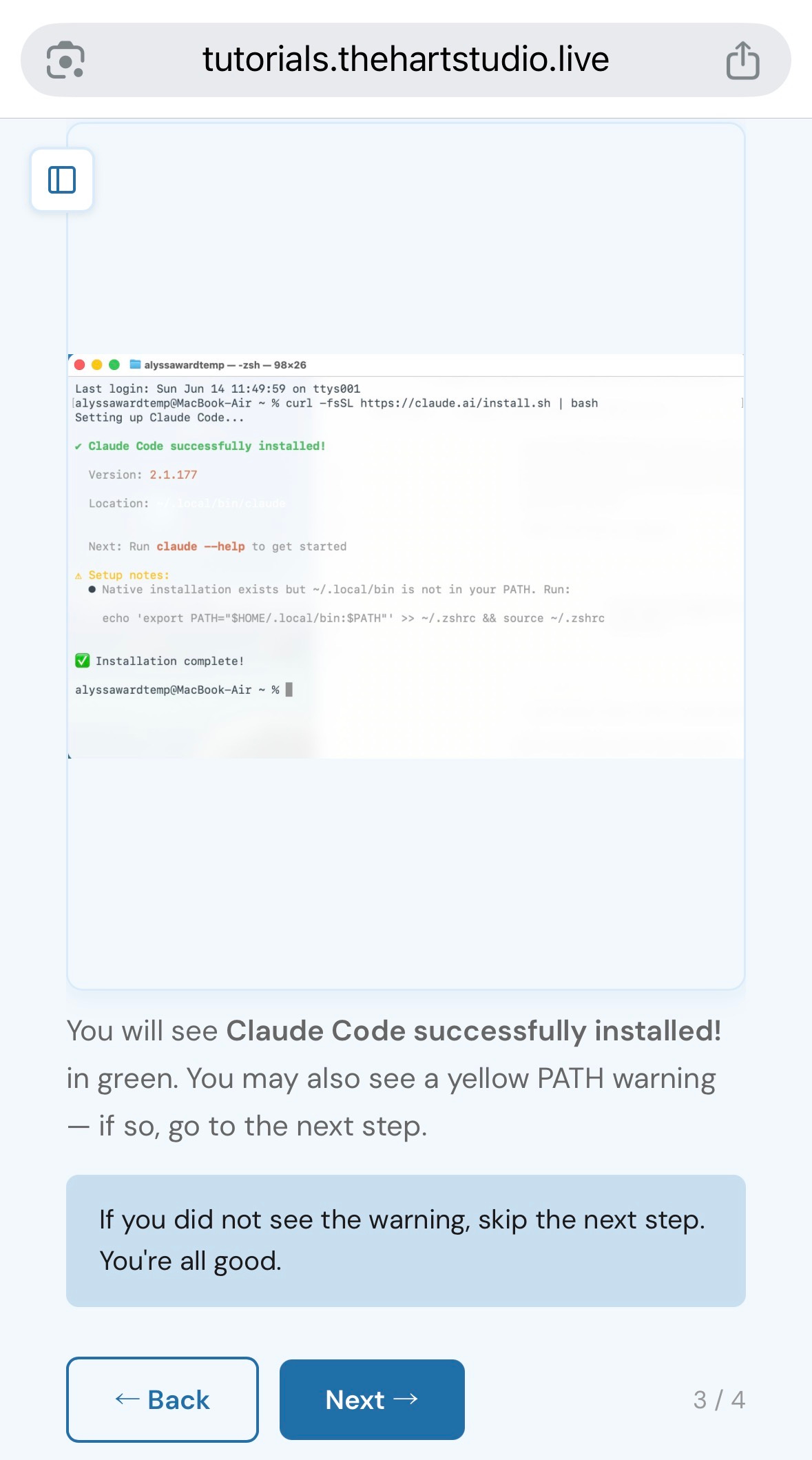
I created a tutorial that walks through all the steps one at a time with screenshots here.
I’m not going to walk through all the steps here since they’re covered in detail in the tutorial linked above.
But here is a brief overview so you know what to expect.
First, you install Claude Code by running a line of code that will download Claude Code onto your machine.
Then, you make sure that your machine can find where you installed Claude Code (you add it to your PATH).
That way you can just type in claude in your Terminal (on a Mac) or PowerShell (on a PC), and that will fire up Claude Code for you.
A word of caution
After following the setup instructions, you should be good to go to work with Claude Code and start creating apps, tools, workflows, projects, anything your heart desires!
The biggest thing to look out for when working with Claude Code is to make sure you understand what it’s doing on your computer. Because it has access to your files and folders, it’s possible that given a particular or misinterpreted command, it could delete or modify files that will be difficult to recover or reverse.
By default, Claude Code should ask you before executing commands. It’ll also include a brief human-readable version in addition to the command it would run.
If at any time you don’t understand what it’s doing, stop it and ask it.
You do not have to run or agree to anything the AI tells you ever. You’re the human. You’re the decision-maker. You get decide what you want the AI to do.
What next — Join us in the HART Studio!
In two days, Friday June 19, there will be a Group Tech Setup session for HART Builders, where we’ll walk through the Claude Code tutorial as well as a GitHub setup tutorial.
This is preparation for the really good stuff HART Builders will be doing in the Studio — Live Build Sessions where we hop on a Zoom call every other week to build with AI together.
The tech setup session and live build sessions are included as part of the paid subscription for the HART Studio. For a limited time, annual subscriptions are 40% off.
This is the best time to join because we’ll be taking the time to set up everything we need in these first weeks and sessions.
There is so much to do and learn about AI. It can be overwhelming! But you don’t have to do it alone, and you don’t have to feel stressed while doing it.
In the HART Studio, we will learn about building with AI in a community with other people who also want to learn and have fun while doing it. I’d love to see you there!
Want to learn more?
There will be a Live Launch Session (free and open to all) on Zoom also on Friday June 19 from 8:30-9:30AM PT right before the group tech setup session. I’ll share an overview of the HART Studio and do two live build demos of the build process end-to-end. I’ll be using Claude, Claude Code, and GitHub.
For more info on the HART Studio and how to join the launch session, go here: